A practical guide to signing in to Consider11 safely: the verified URL, the device and network checklist, password safety, recovery steps and phishing warnings.
C11 Editorial team · Consider11Updated weeklyReading time ~ 8 minutes
The legitimate login path
Always reach Consider11 by typing the operator's verified domain directly into your browser, or by following a link from the operator's official app or social profile. Bookmark the verified URL after the first visit — typing it manually is the single biggest protection against phishing.
First-time sign in
Open the operator's verified URL on a phone you control.
Enter your registered phone number or username.
Complete the OTP or password step as the operator requires.
If the operator prompts for two-factor authentication, approve the prompt on your registered device only.
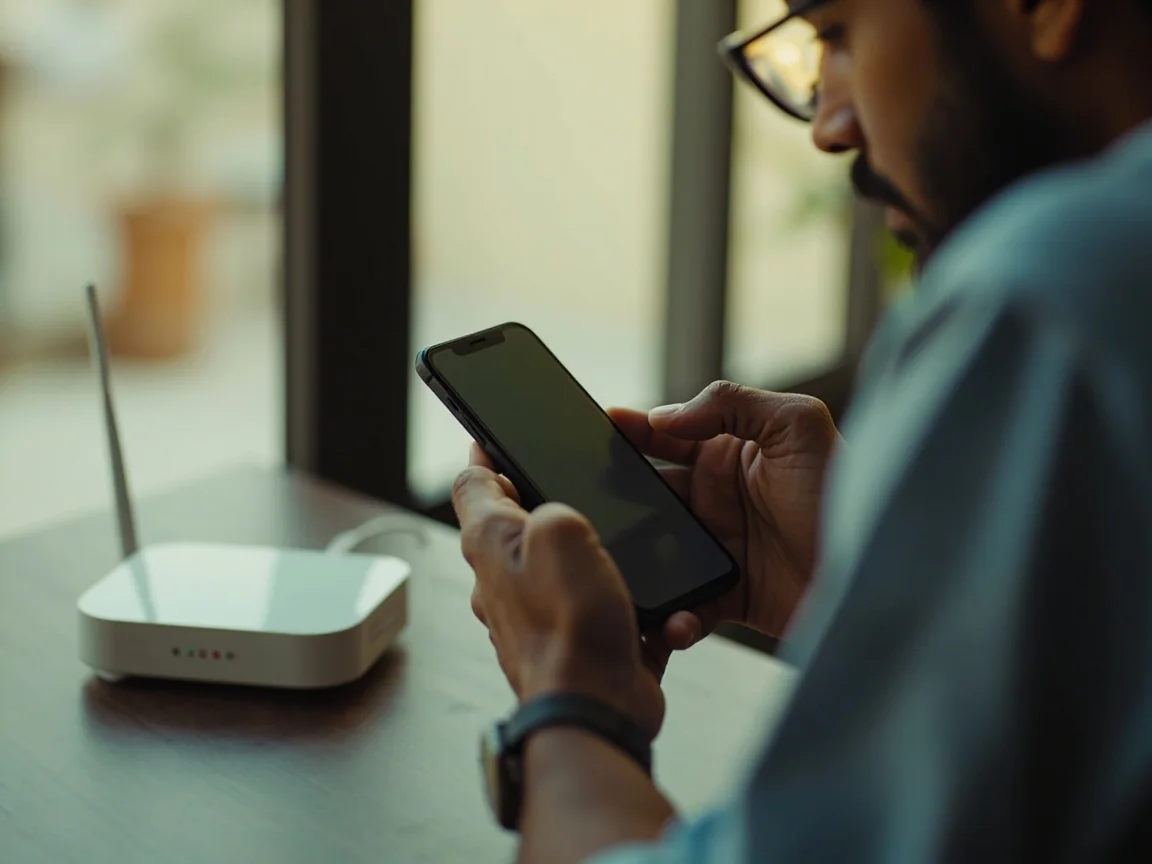
Figure 1 — Before every login, check the device, the network and the URL. Two minutes of caution is worth more than any password reset.
Device and network checklist
Sign in only on a device and a network you trust.
Use your personal phone or laptop — not a public terminal.
Use your home Wi-Fi or a trusted mobile network — avoid open public hotspots for any login.
Make sure the browser shows the operator's domain (no lookalike spelling) before you enter a password.
Confirm the URL begins with https:// and that the certificate is valid.
Password and account safety
A unique, strong password is the single biggest upgrade you can make to your account.
Use a password manager and let it generate a 16+ character random password.
Never reuse the password from any other site, especially your email.
Enable two-factor authentication if the operator supports it.
Sign out of any device you no longer use.
Figure 2 — Treat your fantasy account like any other financial account. A password manager is the simplest upgrade.
If you cannot sign in
Use the operator's official "forgot password" or "forgot phone" recovery flow.
Confirm your registered phone number can receive SMS or OTP.
If recovery is delayed, contact the operator through a verified support channel — never through a social-media DM.
Save your reference number; the operator will use it to trace the request.
Recognising phishing
Real support staff will never ask for OTPs, full card numbers, password reset links or remote-screen access. If you receive any of these requests:
Do not click links in unsolicited SMS, email or WhatsApp messages.
Open the operator's verified URL in a new browser tab and confirm your account state directly.
Two-factor authentication adds a second verification step on top of your password. The most common second factors are an SMS OTP and an authenticator-app code. The desk prefers authenticator-app codes for two reasons: they cannot be intercepted by a SIM-swap, and they work without cell service.
If the operator supports authenticator apps, set one up. If the operator supports only SMS OTP, enable it but be aware that SIM-swap attacks exist. Use a strong, unique password and check your account activity regularly.
Session management
Most operators allow simultaneous sessions on multiple devices. The desk recommends signing out of any device you no longer use, and reviewing active sessions every few weeks. The account settings page usually lists active sessions and lets you terminate them individually.
A short note on password managers
A password manager is the single biggest upgrade you can make to your account safety. A good manager generates a 16-character random password for every site, fills it in for you, and warns you when a site is breached. The desk uses one; we recommend one.
A deeper read on recovery
Recovery flows differ between operators. Most operators support recovery through the registered phone number; some support recovery through email or through a customer-care escalation. The desk recommends documenting the recovery flow on the day you sign up, when the account is healthy, so you have a checklist ready when you need it.
Impersonation patterns
Impersonators usually work through one of three channels: SMS claiming to be from the operator, email with a phishing link, or a social-media DM. The defense is the same: type the operator's verified URL manually into a new browser tab and check your account state directly. Never click a link in an unsolicited message.
Quick answers
Frequently asked questions
Can I sign in on more than one device?
Yes, but only on devices you personally own. Sign out of any device you no longer use.
I never received my OTP. What now?
Wait two minutes, request a new code, then check your signal. If the problem persists, contact the operator through the verified support channel.
Someone has my password. What should I do?
Reset the password immediately from the verified URL, enable two-factor authentication, and review your most recent account activity. Report the incident through customer care.
Passphrase vs. password
A passphrase is a sequence of four or five random words strung together ("correct-horse-battery-staple") instead of a single word with substitutions. Passphrases are easier to remember and harder to crack than traditional passwords. Most password managers support both.
Device fingerprinting
The operator may use device fingerprinting as an additional security signal. The fingerprint combines your phone's model, OS version, screen size and a few other parameters into a unique identifier. If a login attempt comes from an unknown fingerprint, the operator may prompt for additional verification.
Shared devices and family plans
If you share a device with family members, use a separate user profile or sign out between sessions. Most operators do not support multiple accounts on a single device simultaneously.
Logging in while travelling
If you travel outside your home state, your login may trigger an additional verification step. This is normal. The operator is checking that the new login is consistent with your account history.
Biometric login
Some operators support biometric login (fingerprint or face). Biometric login is faster than password login and is not vulnerable to phishing (the biometric cannot be phished). The desk recommends enabling biometric login wherever the operator supports it.
Auto-fill on mobile
Most password managers support auto-fill on mobile. The desk recommends enabling auto-fill in your password manager — it makes login faster and reduces the risk of typing your password on a phishing site.
Older devices and login friction
Older devices may not support the latest biometric or auto-fill features. If you are logging in on an older device, use a strong password manager-generated password instead of a memorable password.
Public Wi-Fi and login
Public Wi-Fi is not safe for any login that involves personal data. If you must log in on the go, use your phone's mobile data instead of public Wi-Fi.
SIM-swap attacks and how to defend
A SIM-swap attack is when an attacker convinces your mobile carrier to transfer your phone number to their SIM. The attacker then receives your OTP and can take over your account. The defense is twofold: use an authenticator app instead of SMS OTP where possible, and add a port-protection PIN to your mobile carrier account.
When you are locked out
If you are locked out of your account, follow the operator's recovery flow. Most operators support recovery through the registered phone number; some support recovery through email. The desk recommends documenting the recovery flow on the day you sign up, when the account is healthy, so you have a checklist ready when you need it.
If you see an unauthorized login
If you see a login from an unknown device or location in your account activity, change your password immediately, enable two-factor authentication, and contact the operator's customer care. The faster you respond, the higher the chance of preventing further unauthorized activity.
Account takeover prevention
Account takeover is the most damaging attack a user can suffer. The defense is the same as for any account: a unique strong password, two-factor authentication, careful review of account activity, and prompt reporting of any unauthorized access.